
Assets & Balance
The Assets page is the main dashboard in UIN Wallet. It shows your balance, wallet mode, quick actions, and recent activity.
Assets Overview
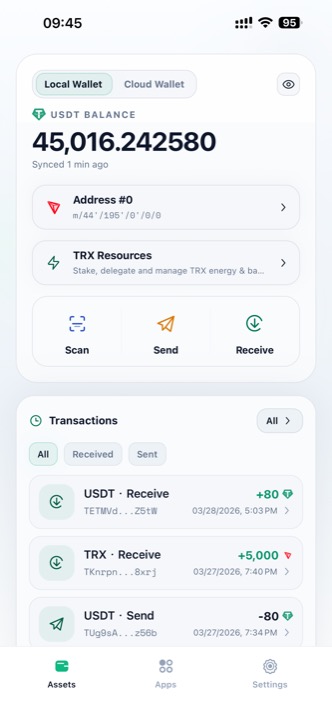
Local Wallet
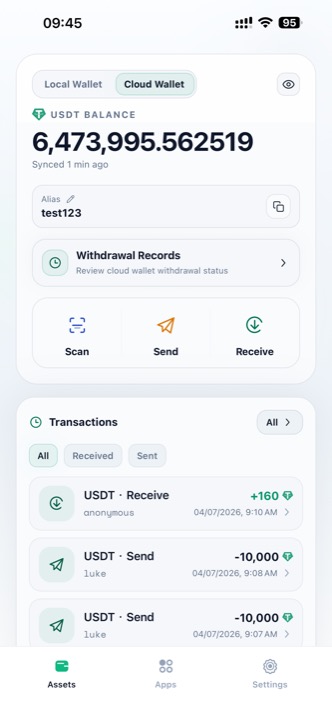
Cloud Wallet
The bottom navigation now includes three tabs:
- Assets for balances and transactions
- Apps for App Center tools
- Settings for language, appearance, and security preferences
Wallet Mode Toggle
At the top of the balance card, tap Local Wallet or Cloud Wallet to switch the current wallet mode.
- Local Wallet shows your self-custodial HD address, TRX resources, and on-chain activity
- Cloud Wallet shows your cloud balance, alias, withdrawal records, and cloud-wallet transactions
Balance Card
The balance card can include:
| Element | Description |
|---|---|
| USDT Balance | Current balance for the selected wallet mode |
| Synced time | Last refresh time shown under the balance |
| Eye icon | Hide or show the balance amount |
| Address row | Current HD address and BIP-44 path in Local Wallet mode |
| Alias row | Your cloud wallet alias in Cloud Wallet mode |
| TRX Resources | Shortcut to staking, delegation, energy, and bandwidth tools in Local Wallet mode |
| Withdrawal Records | Shortcut to cloud wallet withdrawal history in Cloud Wallet mode |
Quick Actions
The same quick actions are available from the balance card:
| Button | Action |
|---|---|
| Scan | Scan an address or supported QR code |
| Send | Open the Send USDT flow |
| Receive | Open the Receive USDT page |
Transactions Panel
The lower panel shows recent activity with filters:
- All
- Received
- Sent
Depending on the wallet mode, the rows can show:
- On-chain transfers from Local Wallet
- Cloud wallet deposits and withdrawals
- Instant transfers settled inside the cloud wallet
- Collection-related receipts labeled by alias or receipt context
Tap All to open Transaction History, or tap a row to open its detail page.