
Receive USDT
Use the Receive page to show your current address and QR code.
Open the Receive Page
From the Assets page, tap Receive.
Receive Screen
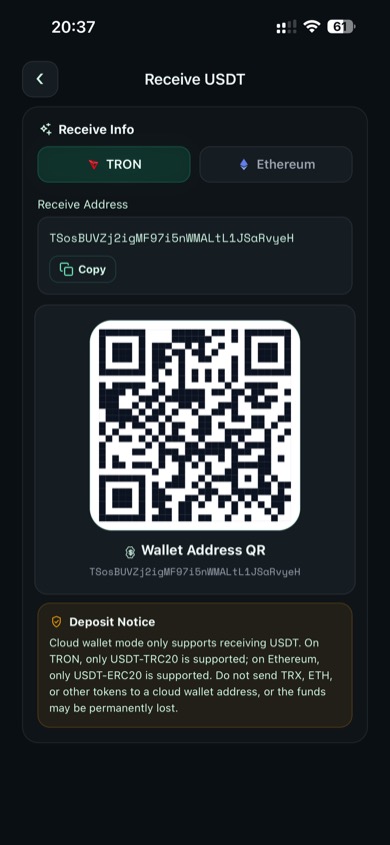
Local Wallet receive screen
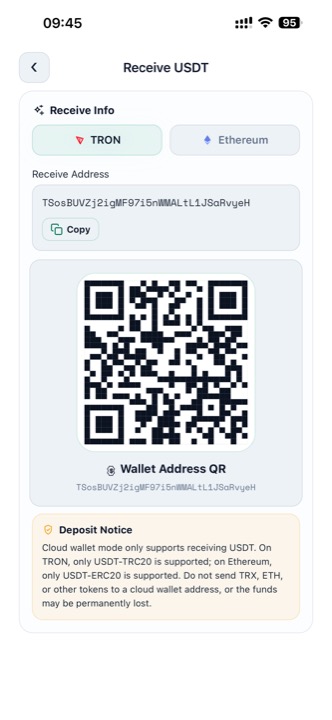
Cloud Wallet receive screen
The page shows:
- Network selector
- Receive address
- Copy button
- QR code
- Deposit notice when needed
Local Wallet Receive
In Local Wallet mode, the receive address follows the currently selected HD address and network.
- Use TRON for TRC-20 deposits
- Use Ethereum for ERC-20 deposits
- If you want a different HD address, switch it first on the Assets page
Cloud Wallet Receive
In Cloud Wallet mode, the deposit notice is stricter.
Cloud Wallet Deposit Rules
Cloud Wallet receive addresses only support USDT deposits on the selected network:
- TRON: USDT-TRC20 only
- Ethereum: USDT-ERC20 only
Do not send TRX, ETH, or unsupported tokens to a cloud wallet receive address.
Anonymous Collection vs. Normal Receive
Use the normal Receive page when you want to share your wallet address directly.
Use Anonymous Collection when you want to share:
- A fixed amount
- A receipt number
- A QR code tied to that collection record
- A more private collection workflow inside the cloud wallet system